


Accessing your ALW Office 365 Account and MS Teams

Sign In
-
1. Open up your internet browser and head to www.office.com (opens in a new tab)

-
2. Click "Sign in"

-
3. Click into the box and enter your ALW email address as shown in your welcome email

-
4. Click into the box and enter your ALW Password as shown in your welcome email

-
5. On first sign in you will need to change your password

-
6. Enter your current password then enter a new password in the next two boxes
Passwords should be atleast 12 Characters consisting of Upper and Lower case letters and a special character (e.g. ! * # )

Setting up Multi Factor Authentication (MFA)
-
7. Download Microsoft Authenticator from the App Store or Google Play.


-
8. Tap the “+” (Add account) button
-
9. Select Work or school account
-
10. Choose one of these setup methods:
- Sign in directly on the app
- Scan a QR code (Recommended)
Option A - Sign in directly on the app
-
1.
Enter your Microsoft Learner email address
Example: 1234@adultlearning.wales - 2. Enter your password
- 3. Complete any verification steps requested
- 4. Approve the test notification if prompted
Option B - Scan a QR code
On your computer
- 1. Sign in to your account via www.office.com
-
2.
Click "Next" on the prompt to keep your account secure

-
3.
Click the "Next" button

-
4.
Click Next again and then you should see a QR on your screen

Back on your phone
-
1.
In Microsoft Authenticator, tap:
- +
- Work or school account
- Scan QR code
- 2. Allow camera access if asked
- 3. Scan the QR code shown on your computer and then click next
- 4. Approve the test notification on your phone by entering the numbers that appear on the computer screen.
Offical Microsoft Guides
Finding 'Apps'
-
11. Once you login you will see a screen for Copilot, to get passed this screen to access your apps (Teams, Word, etc.) click the 9 dots in the top left corner.

-
12. Once you click the 9 dots you will be able to find your apps and can click on the one you need.

How to access Teams to join your courses
-
13. Click the Teams Icon under Apps

-
14. Click "Sign in"

-
15. Click on your ALW email account

-
16. To access your classes you will need to click on the tile displaying your course to access the class resources and chat

-
17. You are able to join your meeting from this section to by clicking the join button in the top right of the class page once the meeting is due to start (Usually displayed around 5-15 minutes before the start time) or by clicking the join button from the ribbon in the chat

-
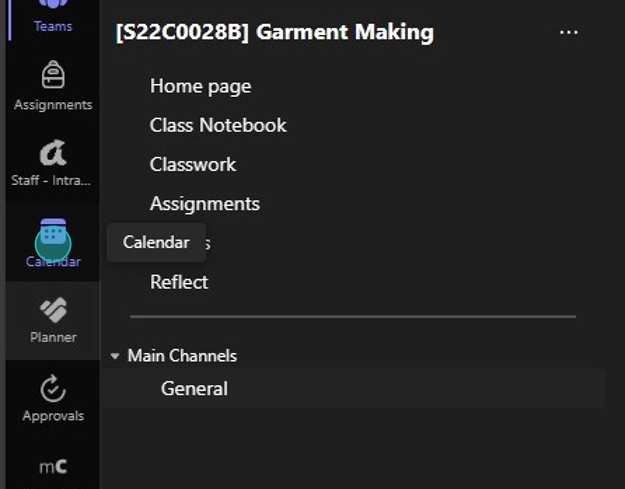
18. The other way to access your class meetings is by heading to the calendar tab on the left hand side
-
19. To join your meeting you can click on the meeting in your calendar

-
20. Click the Join button

-
21. The first time you join a meeting on Teams it will ask you to allow access to your Microphone and Camera, this is very important to be able to communicate effectively in the class.
Click "Allow" on the pop up.

-
22. This screen will pop up where you will be able to see yourself if your camera is on and you just need to click "Join now" to get into your class

Downloading the App Version of Teams
-
23. We recommend using the app version of Teams for full functionality however this is not essential to join your class
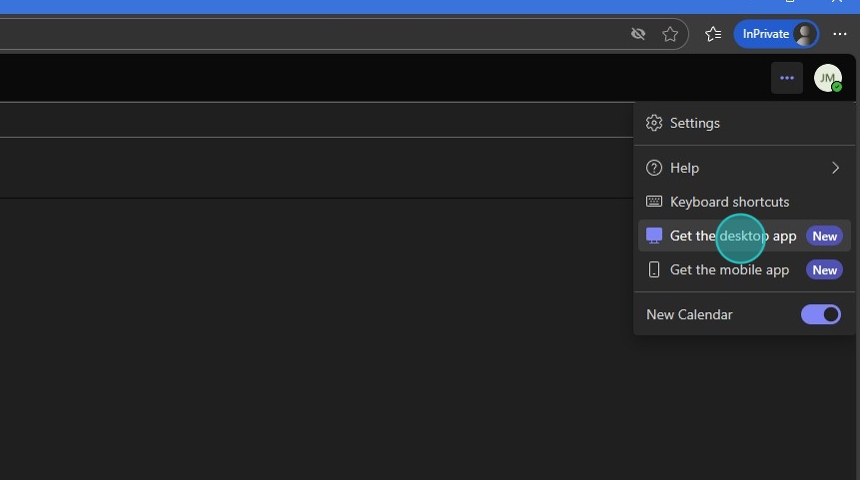
Click the 3 dots in the top right of your screen next to the circle with your initials

-
24. Click "Get the desktop app"
-
25. A new tab will open up as shown below, Click "Download Microsoft Teams for Windows" and follow the next steps to download Teams
Please note once you have downloaded Teams you will need to Sign in with your ALW Email address and password


Need help?
If you are experiencing any difficulties going through the steps outlined above, please don't hesitate to get in touch with us and we will assist you.
Learner IT Support Services: LearnerITSupport@adultlearning.wales
Check out our courses



Join us
Become a learner, a tutor, partner or a member! Whatever you'd like to do, we would love for you to be a part of what we do.
Contact us